plumeo

Public beta

Better writing, one shortcut away.

Your AI writing assistant for Mac and Windows. Correct grammar, rephrase text and improve emails in any application, with one keyboard shortcut.

Public beta: Plumeo is still evolving. macOS (Apple Silicon) and Windows.

Free: 20 requests without an account, then 100 to get started and 25/month with a free account Plus subscription: €1/month, billed annually (€12/year)

Plumeo in action

One email, two shortcuts

Select your draft, compare wording in Plumeo, then replace the text in your email.

A triple click selects the passage in Mail. ⌘ + Shift + E brings Plumeo above the draft, with two suggestions in a list. ⌘ + Return inserts the chosen wording into the email.

Reading pauses shortened, generation shown at real speed. On Windows: Ctrl + Shift + E, then Ctrl + Enter. Enable alternatives in Settings.

Writing styles and tones

Your ideas, the right words

In Plumeo, choose the mode that suits your reader and your purpose. One mode applies at a time.

Writing styles

Simple
Short sentences and everyday words.
Professional
Clear, direct and concise workplace messages.
Formal
Formal language for official correspondence.
Academic
Precise, formal language for academic writing.
Casual
Relaxed, conversational writing for everyday exchanges.
Technical
Precise, structured wording for technical subjects.

Writing tones

Enthusiastic
More energy and expression.
Friendly
A warmer, more approachable tone.
Confident
More direct, assertive wording.
Diplomatic
More tactful, measured wording.

Everyday edits

Auto
Improves your text while preserving your tone and style.
Grammar
Fixes only grammar, spelling and punctuation.

Find your words

All writing modes are included in the free version.

An AI writing assistant for everyday text

Check an email, rephrase a paragraph or adjust the tone of a message with Plumeo. This desktop app for Mac and Windows opens with a keyboard shortcut from the application where you already write.

How to improve a text with Plumeo

  1. Select your text

    An email, a document, a message: start with a draft you have already written.

  2. Press your shortcut

    ⌘ + Shift + E on macOS, Ctrl + Shift + E on Windows. Then choose the writing mode that fits your task.

  3. Review and choose

    Compare the result and up to three alternatives, then copy the text or replace your selection.

Spot corrections at a glance

Compare suggestions and find the changed passages with color-coded highlights. Enable this option in Plumeo’s settings.
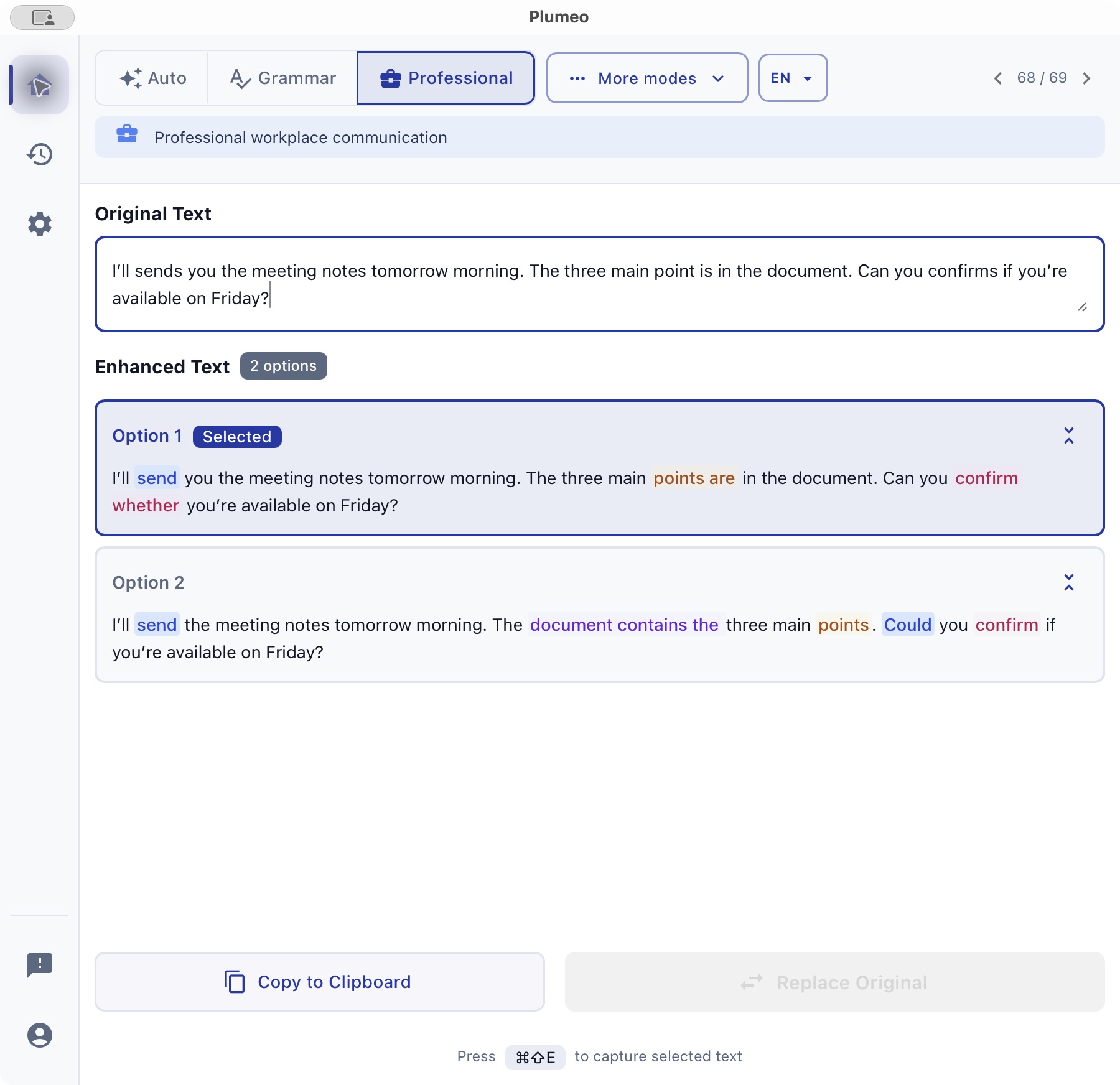
Real screenshot of Plumeo in light theme, with the interface and two suggestions in English. Changed passages are highlighted in blue, yellow, pink and purple.
Enlarge screenshot
A fictional example in Plumeo on macOS, with two real suggestions and Color-coded corrections enabled. Screenshot framed around the text and suggestions.
Read the screenshot text
Original text
I’ll sends you the meeting notes tomorrow morning. The three main point is in the document. Can you confirms if you’re available on Friday?
Suggestion 1
I’ll send you the meeting notes tomorrow morning. The three main points are in the document. Can you confirm whether you’re available on Friday?
Suggestion 2
I’ll send the meeting notes tomorrow morning. The document contains the three main points. Could you confirm if you’re available on Friday?

Practise writing in another language

Learning a language? Check sentences you have written yourself, translate a draft and compare alternatives. Plumeo supports English, French, German, Spanish, Italian and Turkish. Explore differences in vocabulary and tone; the desktop menu language remains a separate setting.

Before you download Plumeo

Can I try Plumeo for free?
Yes, with 20 requests without an account. A free account with a verified email adds 100 welcome requests and 25 per month. Plus costs €1/month, billed at €12/year, with no monthly quota and a fair-use limit of 30 requests per UTC day.
Which computers are supported?
Plumeo is available for macOS on Apple Silicon and 64-bit Windows. You can customize the global shortcut in Settings. The app is in public beta.
Is my text processed on my computer?
History stays on your device, but selected text is sent to the AI service for enhancement. An internet connection is required. Plumeo does not retain this text on its servers; the AI provider may keep it for up to 30 days for security purposes.